In this article, I relate how I was having Edge log me into the wrong M365 account. To resolve this, I tried many things, and finally solved it by deleting the profile from Edge. This did allow the credentials to be “forgotten”, which I had been unable to do before.
Profile Issues in Edge
If you are like me, you likely use Edge/Chromium profiles to allow you to access multiple M365 tenants from the same computer. This can lead to some issues if you accidently sign into the “wrong” profile from another profile. For example, I was in my “primary” work profile and I accidently selected the credentials for a demo tenant. From that point forward, everytime I logged into M365 and was prompted for a password, it would show the account selection box.
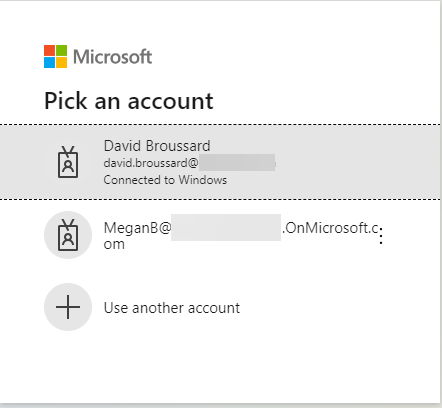
Now, if you were lucky (and you didn’t accidently click on the authorize the account for all apps on the computer when you logged in the first time), you might see the elipses at the end of the account and you can click on that and forget the account.
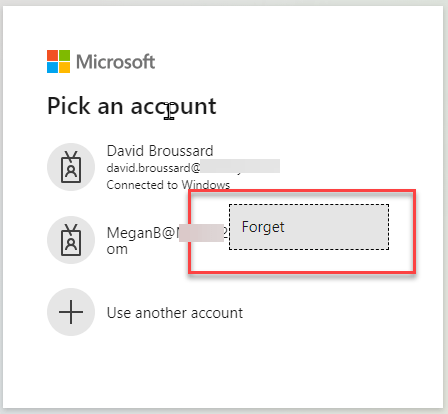
But, for our sake, let us say that you made that mistake and you don’t have that ability to forget the account. This can cause some…weird…problems. For me, it surfaced when i was trying to get to Microsoft Planner in my work profile. I hadn’t been there with my work acocunt yet, and for some reason, Edge decided that Megan’s account was what I wanted to use, and no matter how many times I logged out, closed all of the browser sessions, and then logged in again, it kept logging me into Megan’s Planner as opposed to my work.
Clear the Cache?
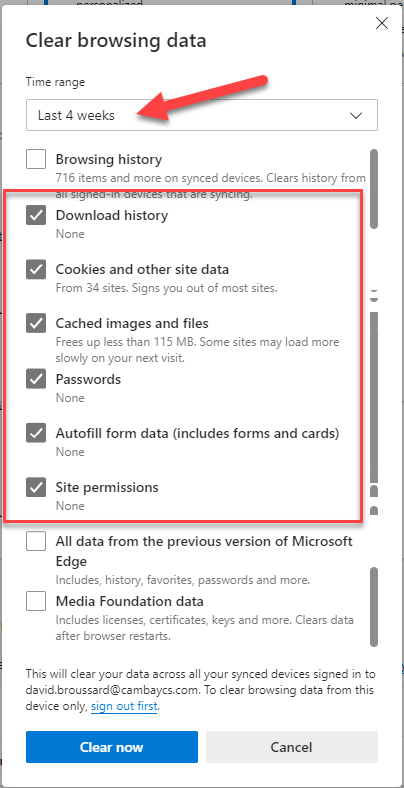
Across the internet I searched. I tried clearing the cache by going to edge://settings/clearBrowserData?search=cache and told it to get rid of almsot everything. I didn’t get rid of my browsing history (that would be a disaster), but download history, cookies, cached images/files, password, autofill form data, and site permissions all got blown away for the last 4 weeks.
Multi-Profile Settings?
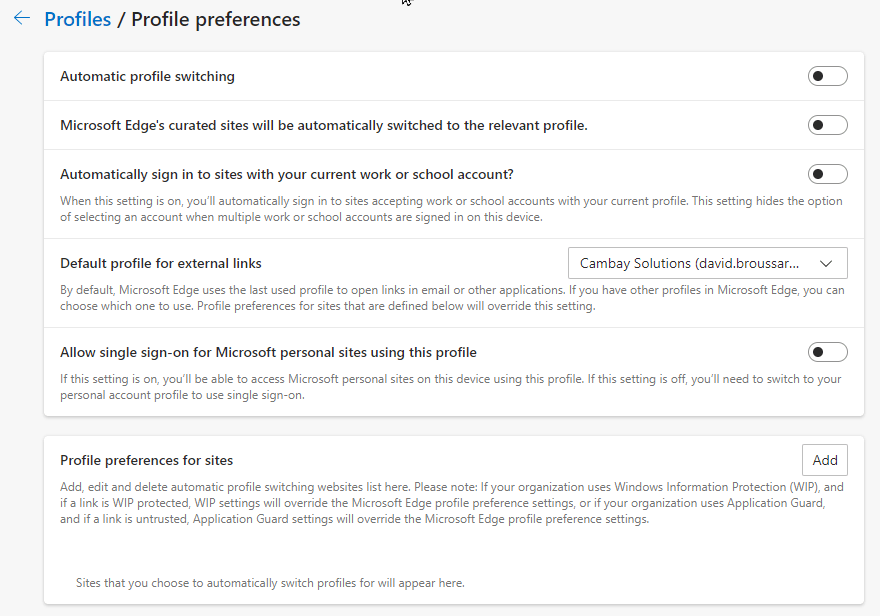
Alas, that didn’t work. So, next I tried going to edge://settings/profiles/multiProfileSettings to see if that would make a difference. There are a number of fascinating and useful settings here that can make your experience easy or difficult. Personally I do not like Automatic Profile Switching because I tend to go to the same sites in all of my profiles (Admin Center, SharePoint Admin, etc.) and it defeats the purpose for me. Your mileage may vary. You can learn more about this by reading this Windows Blog Article. If you are running Edge 99 or later, you will have the ability to identify certain sites that you want to profile switch to automatically, and this can be useful in many situations, but I leave it off as well. The next option is to automatically sign in with your work of school account which also seems like a good idea, but if you are logging into multiple M365 tenants, it won’t work well.
Delete the Offending Profile
So, how did I end up resolving this issue? Unfortunately I had to delete the offending profile in Edge. You have to switch to that profile, then click on the elipses and select remove.
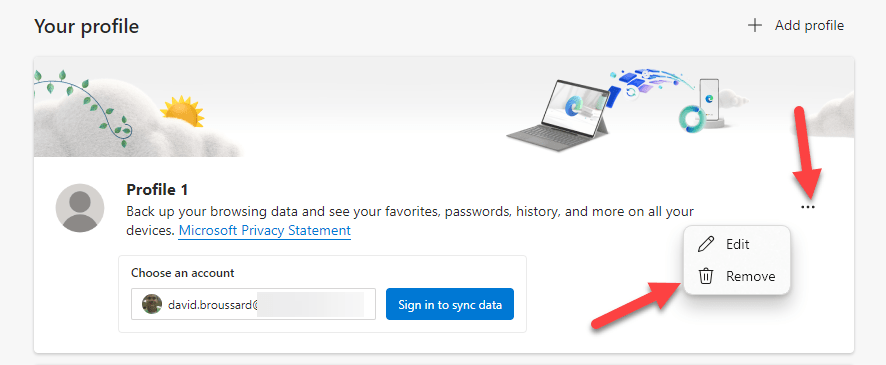
Then you just click the Remove option and everything related to that profile is gone. This has the effect of making that login “forgettable” in other Edge profiles.
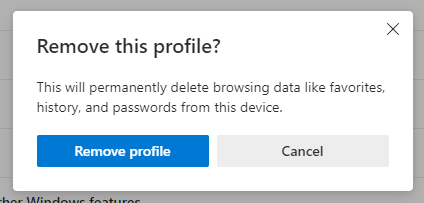
What I think was happening was that since the Edge browser had Megan’s profile saved and since I hadn’t logged into Planner using my work credentials, but had with Megan’s profile it was taking the “easy way” and using that login, even when I logged out of that profile and tried to login using my work credentials. After I deleted Megan’s profile and tried to log into Planner, it prompted me for credentials and I selected my work ones and it took a bit longer but finally allowed me into Planner using those credentials. Finally.
Let me know…
If you have expereinced this problem and resolved it another way, let me know in the comments. If this solves your problem, then like this post. I hope this has helped out someone.
 The Cloud Whisperers
Leave a comment