People are using Copilot and Search more wide and that is leading them to realize how important item-level security is in SharePoint and OneDrive. Microsoft and others are warning about the use of Organizational Sharing Links. Most organizations are taking steps to review how many of these links exist and how to deal with them. What many of us didn’t know about(myself included) is the default behavior of tenants when the Default Link is set to “Only people in my organization.”
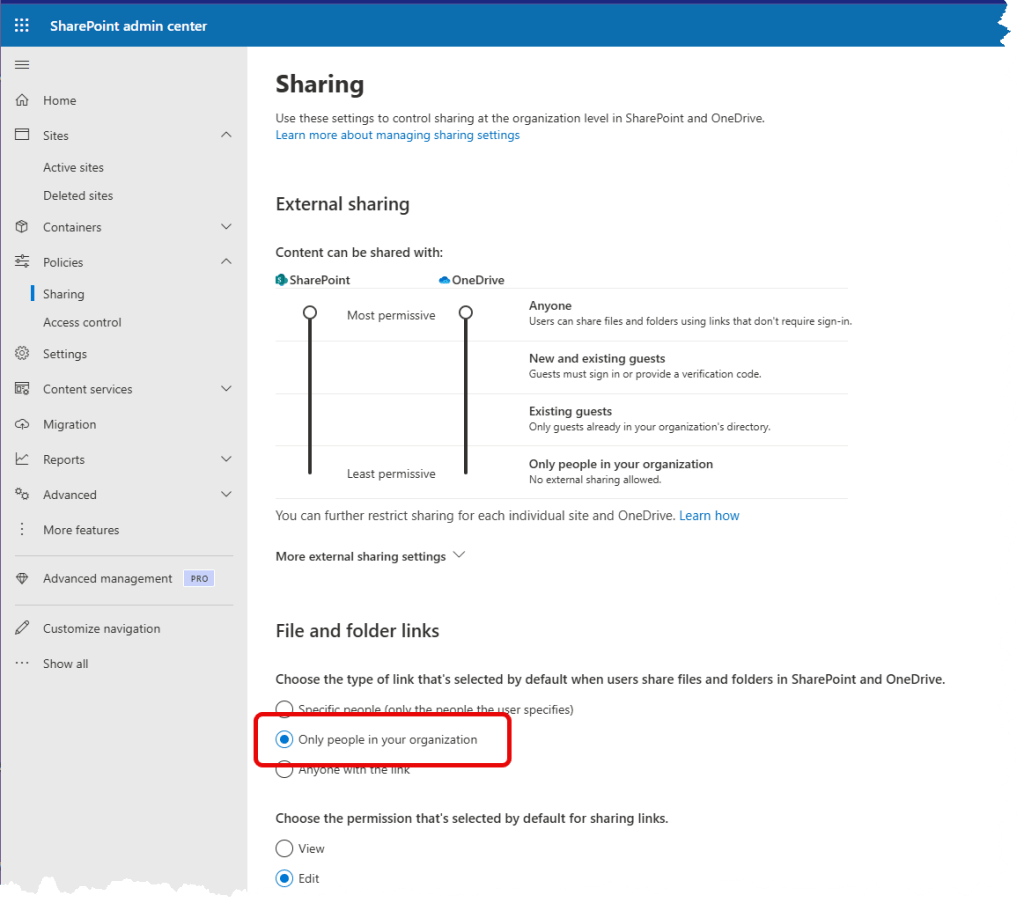
I like the “Only people in your organization” link when I am sharing something with a wide range of people. I use it often so that link sharing is easier. I even used to recommend to clients to set their default to that level to make adoption of SharePoint easier. But…there is a major downside to this setting. If you have configured your tenant this way, I recommend you change it immediately. You are creating org links for most of your content without knowing that you are.
Defining Some Terms
To be clear, let us define some of the things that we are talking about here.
- File and Folder Links – SharePoint allows users to create links in multiple ways. Users can then send those links in emails, chats, or other ways. These links provide access to other users to files or folders
- Anyone with this link – Also called an Anonymous link. This link allows any user access to the file or folder without being authenticated. It is not recommended to be used.
- Specific People Sharing Link – This is a link that allows the user to select people (inside and outside of the organization) who will have access via this link.
- Organizational (Org) Link – This link allows anyone with the link in your org to have access to the content.
Sharing in OneDrive
How is this happening? Well, in a tenant configured like above, let’s take a look at a OneDrive folder:
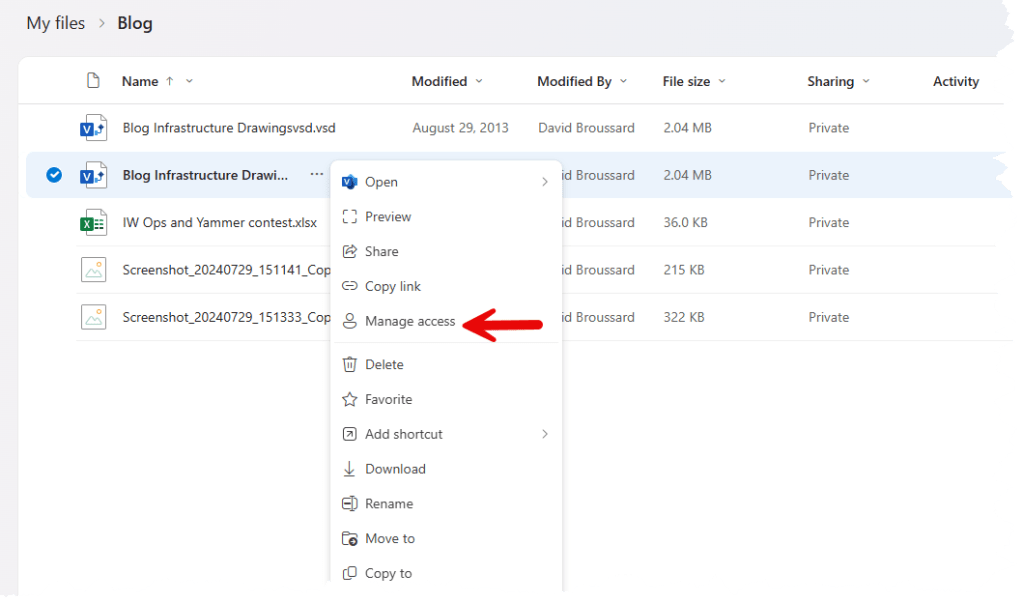
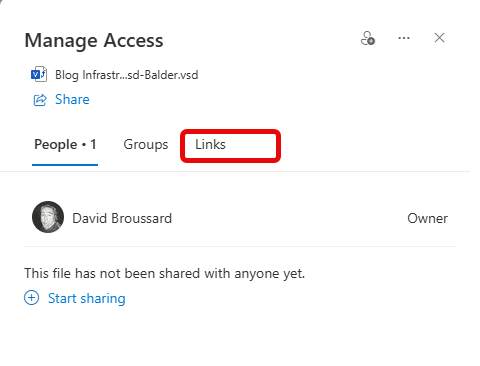
We are going to look at the access for the file I’ve chosen. You can see that it does not have any Links providing access.
Now, I am going to click on the Copy Link in OneDrive and let’s see what happens.
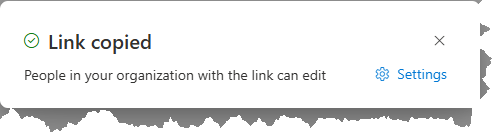
It is an org link. I don’t want that. So I click on Settings and change it to Specific People and add two users.
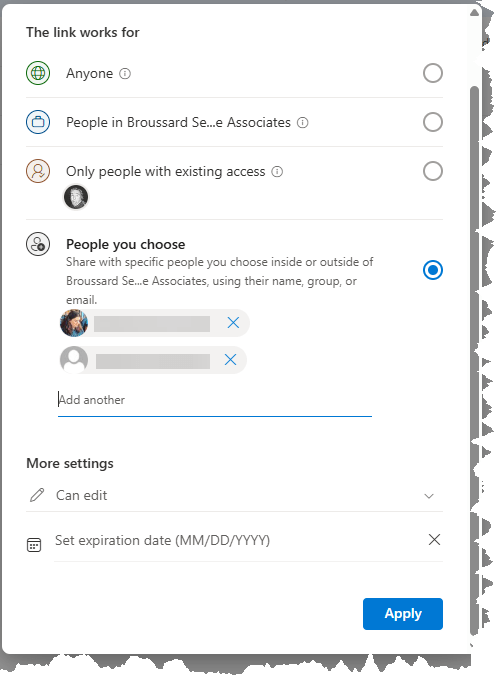
When I Apply that I see that the link is only for existing people. That is exactly what I want.
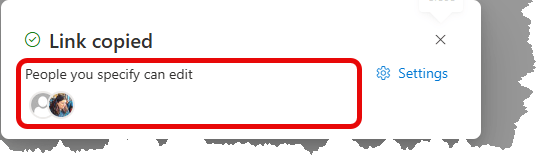
When I then go look at the access for the file I expect to see only the Specific People link. I am surprised to see something else entirely.
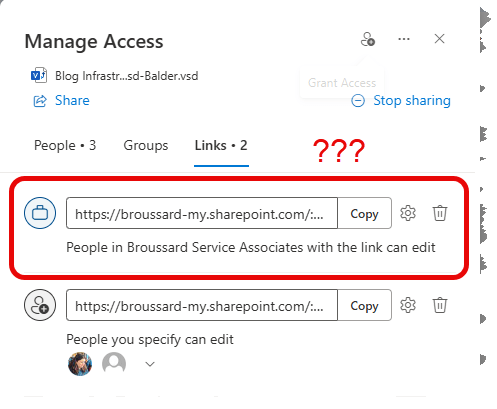
Where did that Org Link come from? I didn’t want it to be created. I just wanted to create a Specific People Link. Because the Default Sharing Link is set to People in your organization, Microsoft is creating that link when you click on Copy Link. It sort of makes sense even. After all, you might just take that link from the clipboard and then quickly send it to someone. So, Microsoft is creating that link when you click on the Copy Link button. But it certainly wasn’t what I was expecting.
What About Other Ways Users Share?
You are saying. Hey Cloud Whisperers, my people never go to OneDrive on the Web, so this won’t happen to them. Well, what if they do this right from say, Word on the Desktop?
Next Steps
In summary, this can happen pretty easily. My recommendation is change that Sharing Policy in SharePoint. Do it now.
- Go to the SharePoint Admin Center
- Click on Policies and then Sharing
- Make sure that your default sharing link is Specific People.
Then we can start to deal with finding and getting rid of those Org Links that we don’t need anymore. There are some reports the Microsoft provides, but PowerShell will be required to find and update those links.
Questions or comments, ask away here, or find me on X (@dbroussa) or LinkedIn.
 The Cloud Whisperers
Leave a comment